My Elan Financial Account Access
Be the first to rate this page
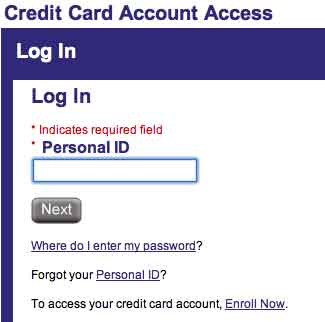
Access your Cardmember Service Account to monitor your credit card through www.myaccountaccess.com. You can log in to your account by entering your personal ID and click the “continue” button. By logging in to your cardmember service online account, you can check your credit card account activities and check for any abnormalities for possible breaches. Pay your bills online using your cardmember service account, check your account statements, and be able to manage your online account and setup custom alerts. Enjoy extra convenience when you have your own account.
If you don’t have an account with myaccountaccess.com, making one is easy and simple. To create your own account, click the “enroll” button at the menu bar to start.
MyAccountAccess Account
For your Cardmember Service account enrollment you will be asked to provide some information including:
- Credit card account number
- 3-digit security code
- Zip code
- last 4-digit of your SSN
- Create a personal ID
- Personal ID confirmation
- Create a unique password
- Password confirmation
- Valid email address
After providing all the necessary information, click the “submit” button. Now that you have an account, you can now start to manage your credit card.
By having an account in myaccountaccess, you can shop without even swiping and have a new mobile purchasing options. Access your credit card account anytime and anywhere as long as you are connected to the Internet and manage your account on-the-go.
If you happen to forget your personal ID, you can still retrieve it by clicking the “forgot your personal ID” link located at my account access login page. You will then be asked to provide your credit card account number and your card’s security code. To verify the information that you provided, you will also have to enter your Zip code and last 4-digit number of your SSN and click “submit” button.
For questions or report of lost or stolen credit card, you may reach them at 800-558-3424. If you have problems regarding technical difficulties when you access your account you may contact their technical support at 877-334-0460.
Find the correct MyAccountAccess page
Searches such as “myaccount access,” “myaccount portal,” or “myaccount com” can lead to unrelated services with similar names. For an Elan-issued credit card, start at the company’s official website. Check that the page identifies itself as Cardmember Service before entering card or identity information.
Do not guess the address or add extra dots. Entries such as “myaccountaccess .com” and “myaccountaccess..com” are typing errors. If a saved bookmark opens an error page, delete it and return through the company’s official website. This also avoids old activation pages saved by a browser or search engine.
Activate an Elan credit card
Card activation is separate from creating online access. Have the new physical card and the primary cardholder’s identifying information ready. Use the activation choice shown on the official Cardmember Service page, then enter the requested card details exactly as printed.
- Confirm that the name and card details match the information supplied with the account.
- Complete each identity check shown on the screen.
- Wait for a clear activation confirmation before trying to use the card.
If there is no activation choice, do not try variations of an address such as “myaccountaccess activate com.” Use the activation instructions that arrived with the card. You may also use the customer-service number printed on the back of the physical card.
If activation fails, check for transposed digits, an incorrect expiration date, or information entered for a different cardholder. After several unsuccessful attempts, stop and use the contact method printed on the card rather than repeatedly submitting the form.
Fix MyAccountAccess sign-in problems
If the correct sign-in page will not load, close the browser tab and open a fresh one. Turn off autofill temporarily if it keeps inserting details for another account. Also remove spaces copied before or after the personal ID.
If the page reloads without signing you in, try a private browsing window or clear the saved site data for Cardmember Service. Make sure cookies and JavaScript are allowed for the session. Switching from an in-app browser to the phone’s regular browser can also help.
A blank page, security warning, or unexpected request for information can indicate that you opened the wrong result. Do not continue on that page. Return to the verified Cardmember Service entry and try again.
Was this page helpful?
Be the first to rate this page