My Card Link Portal
Be the first to rate this page
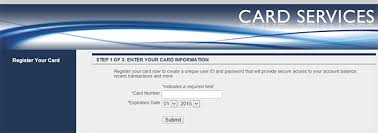
Access your Card Link Services account through their online portal with your user ID and password at www.mycardlink.com. Enter your card number and its expiration date to activate it. After you have successfully registered, you can enter any desired unique user ID and password to access your secure account and check account balance, recent transactions and more.
To report a lost or stolen card, you may email them by clicking the ‘Lost or Stolen Card’ link at the bottom of the page and complete the required fields which includes the owner’s name, address, telephone number, state, ZIP code and a valid email address. You’ll be asked to select whether it was lost or stolen and indicate the date on which it happened. Provide a detailed description on how it was lost or stolen and make sure to have the last four digits of your card.
Key Features of MyCardLink
- Your account history
- View account balance
- Make payments
- Manage account information
- You previous transactions
- Set up recurring payments
If you have inquiries or having issues with My Card Link or technical difficulties you can reach the technical support team by sending an email to [email protected].
What is a LINK card?
A LINK card usually means the card used to access benefits issued through the Illinois Electronic Benefit Transfer program. It is not necessarily the same card as one managed through My Card Link Services.
Check the name printed on the front or back of your card before entering any information. If it says Illinois LINK, use the official Illinois LINK card service named in your enrollment papers or on the card. If it identifies Card Link Services or My Card Link, use the portal described on this page.
The card number is the long number printed on the card. It is different from a support telephone number, case number, user ID, or personal identification number. Do not post or email the full card number unless an official support representative gives you a secure way to provide it.
Choose the correct sign-in page
Search terms such as “I-Link login,” “LINK card IL login,” “Link Me login,” and “Access Link sign in” may refer to different programs. Start with the exact program name shown on your card, letter, or account record. Then open the company’s official website if your card identifies My Card Link Services.
Uplink is also a separate name used by more than one organization. An Uplink login result should not be treated as a My Card Link sign-in page merely because the names sound similar. Before signing in, confirm that the page displays the same provider name as your card and asks for the type of credentials you created for that account.
If the page looks unfamiliar, close it instead of testing several passwords. Return through a saved statement, enrollment message, or the verified provider name printed on the card.
If the balance or activation does not work
For a LINK balance check, first make sure you are using the portal for the program that issued the card. A valid card number may still be rejected by the wrong service.
- Re-enter the details carefully, without spaces added by your phone.
- Check that you did not substitute a case number, support number, or user ID for the card number.
- If sign-in fails, use the portal’s password or user ID recovery option instead of creating another account.
- If activation appears incomplete, avoid repeating the process many times. Contact the support service identified on the card or official paperwork and have the card and account-holder details ready.
- If no balance appears after sign-in, check for a pending status or recent transaction before assuming the card is inactive.
Do not share a password or personal identification number with anyone offering a “support link” through an unsolicited message.
Was this page helpful?
Be the first to rate this page