Converge Payment Portal
Be the first to rate this page
Manage your authentic Converge account by using your login information at www.myvirtualmerchant.com. Type your password, user ID and account ID in the provided spaces and then proceed by using the ‘Sign In’ key. You can always request for assistance in case of issues with your access. To make a request, please locate the ‘Help’ button at the bottom right area of the portal.
There are various tools and menus that can be explored inside the page. Every menu possesses a specific information and purpose. Use the menu to search for any relevant information that you need. In addition, learn more about the offered payment platform and its advantages through myvirtualmerchant.com.
Reasons for Creating MyVirtualMerchant Account
There are advantages that you can receive through your membership. The following are part of the benefits that can be gained right away:
- Advanced Features – Has upgraded security features like encryption and EMV. Allows you to customize the payment dashboard, 12 months reporting on data storage and 5,000 user accounts management.
- Mobile – Do your payments while on the move. The payment application can be installed in most tablets and smartphones.
- In-Store – Allows you to make online payments through your phone, computer, or other gadgets.
- Back Office Phone and Mail – Accomplish your phone or mail payments using your computer. Sets up your recurring and installment transactions quickly.
- Flexible – Securely manage any e-Commerce enterprise along with its payment tasks.
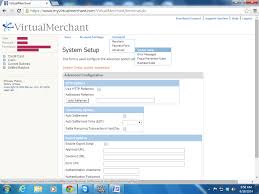
Learn more about the valuable payment platform of My Virtual Merchant through the provided link. You can use the ‘Stay Updated’ link and be informed of the latest information about your application. Located inside are several links in case you need more details about your Converge access. You may send your mail correspondence to Elavon Incorporated, Two Concourse Parkway, Suite 800, Atlanta, Georgia, and zip code 30328. Do not hesitate to send in your queries, comments, or complaints using the online email form.
How to handle a Converge payment
First decide whether you are the customer making a payment or the merchant accepting it. Customers should use only the payment page or instructions supplied by the business they are paying. Do not enter card details on a page reached through an unexpected text or email.
Merchants should have the customer or transaction details ready, then open the appropriate payment screen after signing in. Check every entry before submitting the transaction. Avoid tapping the final button more than once while the request is processing, because a slow connection can make a completed payment appear stuck.
Keep the confirmation or reference information shown after submission. It can help identify the transaction later without exposing the full card number.
If the payment is declined or will not submit
A decline does not always explain the exact problem. Review the information you entered, including the card expiration date, billing details, and any security code requested on the payment screen. Correct an obvious typing error and try again once.
If the information appears correct, do not keep submitting the same payment. The cardholder may need to contact the card issuer, while the merchant may need to review the response shown in Converge. Save the decline message or response code, but never send a full card number, password, or security code in an email or support request.
For a page that freezes or returns an error, confirm that the device still has internet access. Then reload the portal or sign in again. Before resubmitting, check whether the first attempt already produced a transaction record.
How to check whether a payment went through
Look for the transaction in the portal’s reporting or transaction-search area. Search with the details available from the attempt, such as the date, customer name, reference information, or last digits of the card. The wording of the status matters:
- Approved generally means the payment request was accepted.
- Declined means it was not approved.
- Pending or an unclear result means you should verify the transaction before trying again.
If the payment appears twice, do not immediately submit another transaction or make assumptions about which entry is valid. Record the transaction references and ask authorized support staff to review them through the company’s official website. Customers who paid a business should contact that business first, because the merchant can locate the payment in its own records.
Was this page helpful?
Be the first to rate this page