Movie Star Planet Game | www.moviestarplanet.com Login
Be the first to rate this page
If you absolutely love games involving role creation and role playing, then you would definitely love the movie star role playing game available at www.moviestarplanet.com.
Movie star Game Overview
The main objective of the movie star planet game is to create a movie star and make the movie star earn fame and star coins. once the created movie star starts to earn star coins and fame, they start moving to higher levels. The created movie star starts at level 0 and starts moving to higher levels based on the fame and star coins earned. The movie star can start earning star coins when the published movie starring the movie star starts getting viewership. As the number of views for the movie increases, the star coins and the fame continue to increase. There are different options available for creating a new movie using which the user can make the movie grander and attract more number of views.
Getting started with the Game
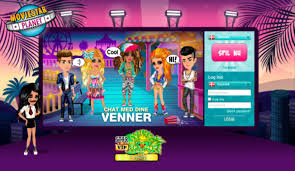
By getting in to the home page of the site www.moviestarplanet.com you can use the “New user Button” to create your own user account. Once created , you can use this user name to log in and continue with your movie star planet game. This user account is free to create and can be used any number of times.
Steps for creating the movie
Once you log in to your account, you would be taken to the “Creative area” screen. This is the area that provides you with all the tools required for creating the movie, including creating your movie star.
Creating a new Movie and Movie Star
You can use the “New Movie ” sign available in the “Creative area” to start a movie. Once you have the new movie screen, the next immediate step is to add stars to perform in the movie. In the new movie screen you can use the “Add stars” option to add the required characters to the movie. You can add up to a maximum of six stars to a newly creative movie. You can also change the clothes worn by these movie stars using the change clothes option.
Adding the content to the newly created movie
After choosing the stars and clothes to be worn by them, you would be taken to the “movie studio” screen. In this screen, you would be provided with options for entering the speech lines that would be spoken by the different characters and choose the right animation required for the scene. There is also a timeline bar available at the bottom of the movie studio screen. Using this time line bar, you can define which movie star should appear at specified times and what action to be performed by the movie star at the set time.
Publishing the Movie
Once you have finished creating a movie by sequencing the different scenes created using the timeline tool, you can publish the movie by using the “send to friends” button available in the movie studio screen. Once a movie is published, you cannot do any modifications to the movie.
Inviting Friends to watch the movie
From the home screen, you can use the “Friends” button to view the list of users currently active online and playing the movie star planet game. There is also a “Friends Activity bar” at the bottom of the screen, which can be used to send invites to the selected friends.
By having more friends to view your movie, you would be able to acquire more star coins and fame. In order to achieve that, you need to keep sending requests to maximum number of active users to watch your movie.
Incoming search terms:
- moviestarplanet login page
- msp login game
- movie star planet login page
- moviestarplanet sign in page
- moviestarplanet online game sign up
- www moviestarplanet com/Login page
- movie star planet sign in page
- moviestarplanet login in page
- www moviestarplanet login com
- www moviestarplanet com
- moviestarplanet login game
- moviestarplanet login
- moviestar plant login
- moviestarplanet com/sign up
- moviestarplanet com/log im
- moviestarplanet com login
- moviestarplanet game login
- movie star planet sign up page
- www moviestarplanet com online game
- movie star planet login com
Before you sign in
Open the company’s official website and choose the sign-in option. Enter the username and password for the account. Check spelling, capitalization, and any spaces added by your phone. If the account was created for a child, use the player’s sign-in details rather than a parent’s email address unless the screen specifically asks for it.
Make sure the selected country or server matches the one used when the account was created. An account may appear missing when the wrong region is selected.
If the MovieStarPlanet login does not work
Start by typing the username and password again instead of relying on saved details. A browser or password manager may have stored an old password. If the page keeps returning to the sign-in screen, close it, reopen it, and try once more.
- Confirm that the internet connection is working by opening another page.
- Turn off automatic page translation if it changes buttons or form fields.
- Clear the browser’s saved data for MovieStarPlanet, or try a private browsing window.
- Try another supported browser or device if the sign-in form will not load.
- Wait and retry later if the service reports maintenance or a temporary error.
Do not keep guessing rapidly. Repeated failed attempts can make it harder to tell whether the problem is a typo, an old saved password, or a temporary account restriction.
Recovering access and contacting support
Use the password-recovery option shown on the official sign-in screen. Enter the email address connected to the account, then check the inbox and spam folder for the recovery message. Use only the newest reset message if several arrive.
If no recovery email appears, check whether a different email address may have been used. Also confirm that the username is exact. Display names and character names may not always be the same information requested by the sign-in form.
If self-service recovery fails, contact support through the company’s official website. Have the username, country or server, connected email address, device type, and the exact error message ready. Explain when access last worked and what troubleshooting you already tried. Do not send the password, recovery codes, or full payment details.
If you think someone else accessed the account, change the password for the connected email account first. Then reset the game-account password and review the account information for changes. Avoid third-party pages that promise free items, account upgrades, or login help in exchange for credentials.
Was this page helpful?
Be the first to rate this page