LiteBlue Login Help (LiteBlue.USPS.gov ) – The Online Acces For USPS Employees
Verified contacts
Taken from the company's own website and checked on 2026-08-25. Companies change these — if something does not match, the official site wins.
- Phone
- 1-800-344-7779
- Phone
- 1-800-877-8339
- Phone
- 1-800-275-8777
Official website: usps.com
Be the first to rate this page
LiteBlue Login: LiteBlue is the self-service portal designed for the USPS employees. It gives them access to various services including benefits, payroll, schedule and more. USPS currently has more than 600,000 employees across the United States. This portal helps the employees stay connected to the company all the time.
USPS encourages its employees to regularly log on to the site as it helps them stay up to date with what is new. Let’s know more about this site.
LiteBlue Registration And Login | LiteBlue.USPS.gov Login Guide:
If you are an employee of United States Postal Service (USPS), the LiteBlue login is for you. But, there are a few things you need to keep in mind before starting the login process. Here is what you need to know:
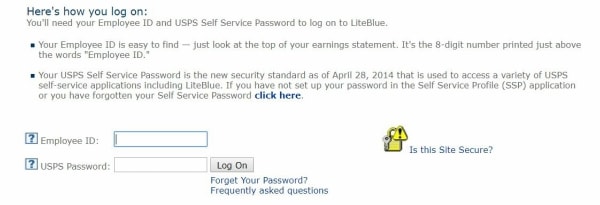
- Employee ID: First of all, you will need your Employee ID to log in on the LiteBlue USPS website. This employee ID serves as your username on the site. If you are not sure where to find this ID, simply open your payment statement and look up for it on the top. You need to find a number with 8 digits which is printed above ‘Employee ID’
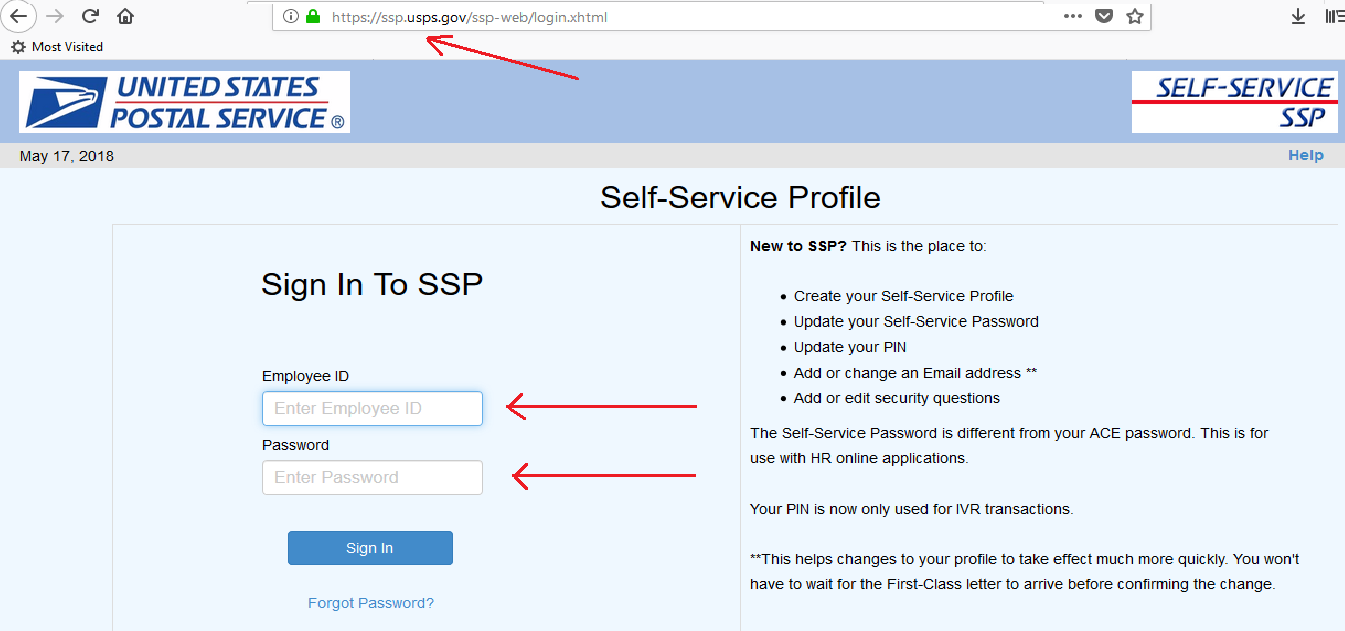
- Password: This is the password you set up or create in your Self Service Profile (SSP). This password is not only for the LiteBlue Gov website but for a wide range of self-service applications as well. USPS has set new security standards effective April 28, 2014. If you do not have the password yet or you have forgotten it, visit the link https://ssp.usps.gov/ssp-web/welcome.xhtml. More on password reset later. Please note that this password will not work on the Self-service IVRs of USPS; you will need PIN or Personal Identification Number.
How To Do LiteBlue Login?
Once you have the Employee ID and password, follow these steps for LiteBlue Login:
- Visit the website https://liteblue.usps.gov/wps/portal
- Enter your Employee ID
- Provide your password
- Click ‘Log On’
Simple! You just need the valid credentials to log in.
Note: This website belongs to the United States Government. Unauthorized use or access of LiteBlue website may lead to legal prosecution or administrative action.
Forgot LiteBlue login Password? Understanding SSP and Creating/Resetting Password:
You need a valid password to log on to this site. If you are a new employee of USPS who hasn’t yet accessed the LiteBlue website, you will need to create a password. If you are an existing user and have forgotten your password, you can reset the password and create a new one. The process for both is pretty much the same.
USPS has created a separate portal for Self-Service Profile (SSP) sign in. LiteBlue is just the part of many self-services the company provides to its employees. Here is the list of things you can do with SSP login:
- Create your personal SSP profile
- Create a new SSP password or reset an existing one
- Change your PIN
- Update your contact information and email address
- Create new security questions or edit the existing ones
The SSP helps you create and manage the login credentials for a number of self-service web services such as PostalEASE, LiteBlue, eReassign, eldeas, and eOPF.
LiteBlue login Features And Services:
LiteBlue is the USPS employee portal, which gives them access to a wide range of information related to their employment. It is one of the most important self-service applications provided by USPS to its employees. Here are some of the things you can do on this site.
- Schedule: different employees of USPS have different schedules. You need to be in the know of your schedule so that you reach work on time. Knowing your schedule also means that you can plan your out of office time better. You can log in to the LiteBlue website and navigate to the schedule section. Here, you will be able to see your schedule for the day, current week, and current month. Any changes to the schedule can only be made by the manager or HR. You may request a change in schedule but it will be subject to approval. In case there are any changes to the schedule, you are notified in a timely manner.
- View Benefits: USPS offers many benefits to its employees. You would like to know which benefits you can opt for and which ones you already have. LiteBlue is the place where you can see all your benefits. It also gives you access to another self-service application called PostalEase. Here, you can manage your benefits easily. You can choose new benefits and change the existing ones.
- Update your contact details: In case you changed your phone number, home address, or email address, you can update the new details on LiteBlue website. You simply need to navigate to the personal information section where you can edit the contact information.
- Careers and Opportunities: If you want to keep up to date with the career and job opportunities offered by USPS, this is the place to be. You can see the new job openings within the organization and check the eligibility criteria. You can also apply for the new job positions from this website.
- gov epayroll: This self-service portal also lets you view your paystubs, payment statements, and other payroll related information. You can download the paystub in the PDF format on your computer or send it to your registered email address. You can also opt for the LiteBlue USPS epayroll, which will ensure that your payment statements are sent to you automatically every month when they are generated.
Liteblue Login – Avoid Phishing Attacks:
Phishing attacks have become quite commonplace in the web landscape. The web criminals pass off a fake website as a genuine one and collect your login credentials. Do not fall pretty to such scams as it may compromise your security. Make sure you never click a link in the email claiming to be of LiteBlue. Always type the correct URL in the address bar.
Is “Access” the same as LiteBlue?
“My Access,” “Access login,” and similar search terms may refer to a separate employee rewards or benefits service. They are not enough by themselves to identify an official USPS system. Do not enter your LiteBlue Employee ID or password on a page simply because its name includes “Access.”
If you were told to use an Access account, check the original message, card, or enrollment notice from your employer. Confirm the exact service name with your supervisor or local HR contact. Then open the service using the instructions in that verified notice, not an advertisement or an unexpected message.
If the page will not accept your details, first check whether it wants a work email address, a personal email address, an account ID, or an invitation code. An Access account may use different credentials from LiteBlue. Use that service’s password-recovery option only after confirming that you are on the intended sign-in page.
Employee gift cards and reward cards
A gift card offered to an employee may be handled outside LiteBlue. Before trying to activate or use one, have the physical card, award email, or redemption notice ready. Read the issuer name and any activation instructions shown on that verified material.
- Confirm with your supervisor or HR contact that the reward is genuine.
- Use the account name, code, or card details requested by the verified issuer.
- Create a separate password if the reward service requires an account.
- Keep the confirmation message until the card or reward appears in your account.
Do not send a card number, redemption code, password, or security answer in reply to an unexpected email or text. If the card is missing, already redeemed, or linked to the wrong email address, contact the program administrator named in the original workplace notice. The “best” gift card depends on the choices offered by the employer and whether the recipient can use it easily; LiteBlue does not make an unfamiliar offer trustworthy.
How to track a USPS shipment from an order
USPS tracking normally uses a package tracking number, not a store’s order number. Open the shipping confirmation from the seller and look for a USPS tracking number or a button that identifies USPS as the carrier. You can then check the shipment at usps.com.
If you only have an order number, sign in to the seller’s order history and open the shipment details. The seller may not provide a USPS number until the package has shipped. If no carrier or tracking number appears, ask the seller for the shipping details; USPS generally cannot identify a package from another company’s internal order number.
If the tracking number is rejected, copy it again without extra words or punctuation and make sure USPS is the named carrier. A newly created label may also appear before the package receives its first scan.
Was this page helpful?
Be the first to rate this page